
Before you begin, make sure you have:
- Admin access to your Bryq account
- Admin access to your Eightfold account
- An active Bryq subscription with API access enabled
|
Note The integration is stage-triggered: Bryq testing is invited when an applicant is moved into a stage you designate in Eightfold. If you use more than one Bryq assessment, you can set up multiple trigger stages — one per assessment — and Eightfold will let recruiters choose which assessment to send at each stage. |
Activating the integration is a five-step process:
- Get your API key from Bryq.
- Create the stage(s) in Eightfold that will trigger Bryq testing.
- Add the new stage(s) to Eightfold's Advanced Stage List.
- Install the Bryq app in Eightfold's App Marketplace.
- Test the integration to confirm everything is working.
- Log in to the Bryq Platform.
- Go to Account > Integrations.
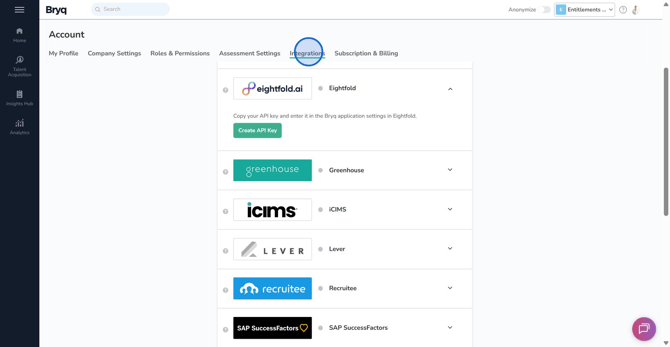
- Find Eightfold in the list of integrations and toggle it on.
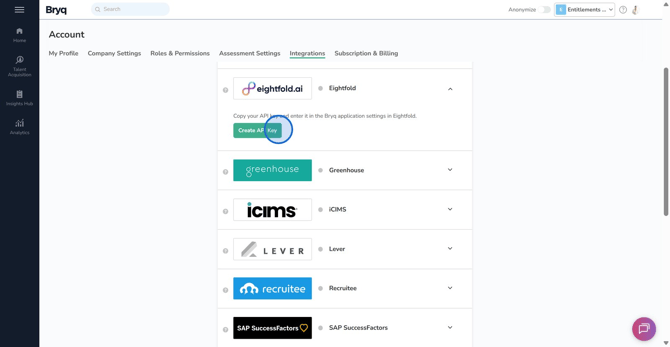
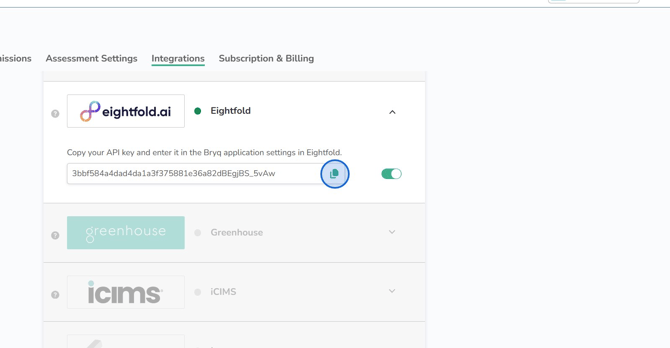
- Copy the API key shown for Eightfold. You'll paste this into Eightfold in Step 4.
|
💡Tip Keep this API key handy — you'll need to paste it into the Bryq app settings inside Eightfold in Step 4. Treat it like a password; don't share it outside of this setup. |
Bryq testing is triggered when an applicant is moved into a particular stage in Eightfold. You can either use the ones already in place in your account or create at least one stage set up for this purpose.
Bryq supports multiple trigger stages, so if you plan to invite applicants to more than one Bryq assessment (for example, a Sales Roles assessment for one requisition and a Customer Success assessment for another), consider creating a separate stage for each assessment. This lets recruiters trigger the right assessment at the right point in each workflow.
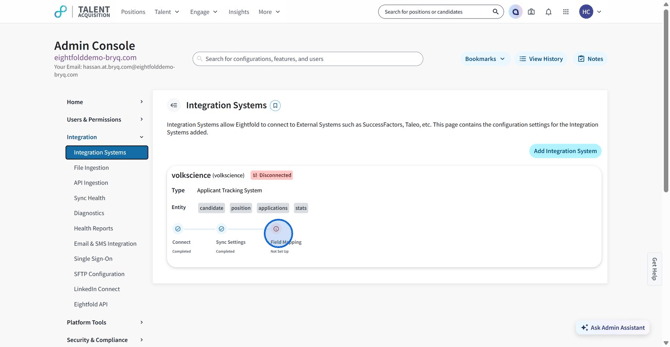
- In Eightfold, navigate to More > Admin Console > Integration > Integration Systems.
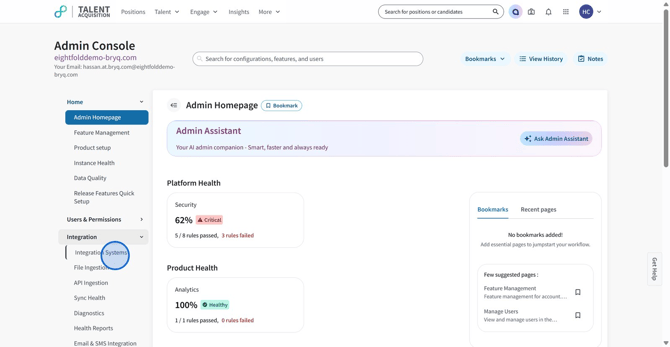 Click Field Mapping.
 Click Stage Map.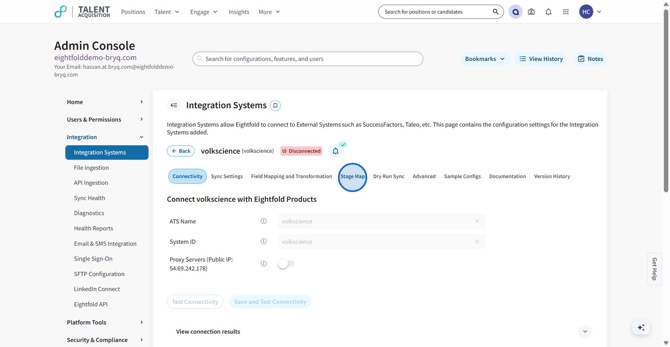
Click Add new stage.
Stage Group: Choose an appropriate group, e.g. new_applicant.
Stage Name: Enter a name for your stage, e.g. Bryq Assessment. Save this name — you'll need it again in the next two steps.
Reason: Enter the purpose for adding this stage, e.g. New stage for Bryq integration.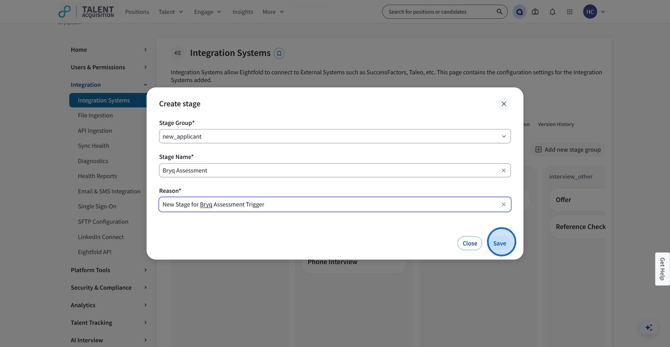
Click Save. Your new stage will appear in the Stage Group you chose.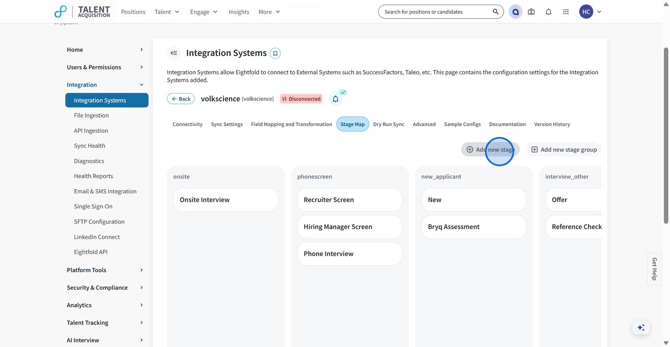
Repeat this process for any additional Bryq trigger stages you need.
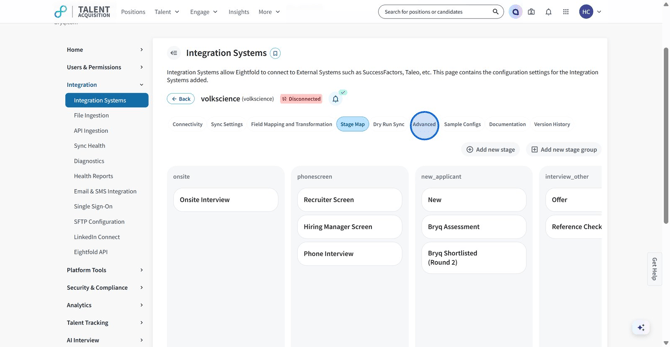
Now that your stage(s) exist in Eightfold, update Eightfold's Advanced Settings to allow those stages to be used with the Bryq integration.
- In Eightfold, navigate to More > Admin Console > Integration > Integration Systems.
- Click Advanced.
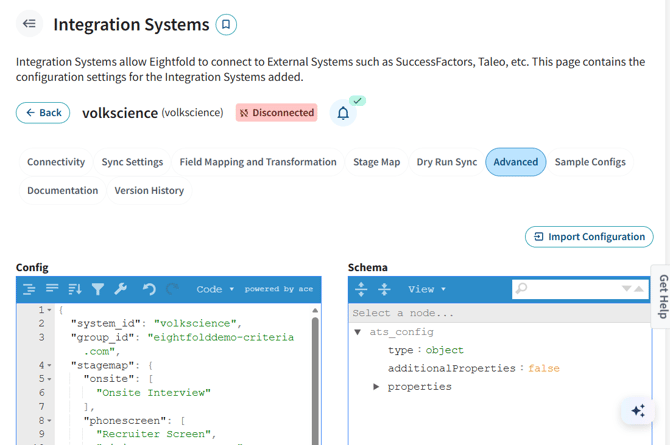 In the Config box, place your cursor in the box and press Ctrl+F (Windows) or Cmd+F (Mac) to search.
- Search for advance_stage_list to jump to the right section.
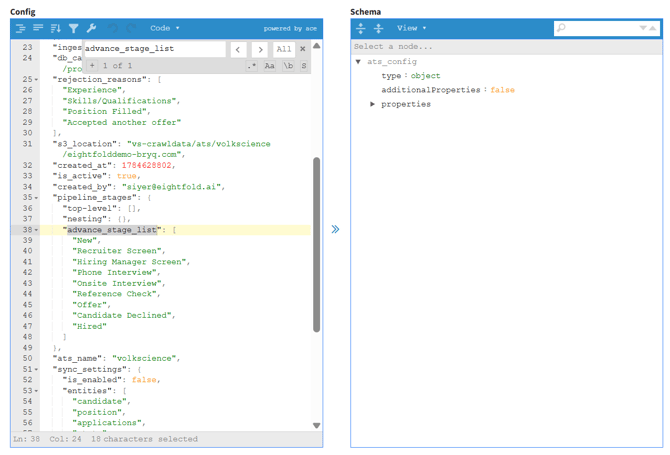 The advance_stage_list is a list of stages that are enabled for advanced configuration. Each stage name is wrapped in double quotes, separated by commas.
- Click where you want to add your new stage (the order doesn't matter) and press Enter to create a new line.
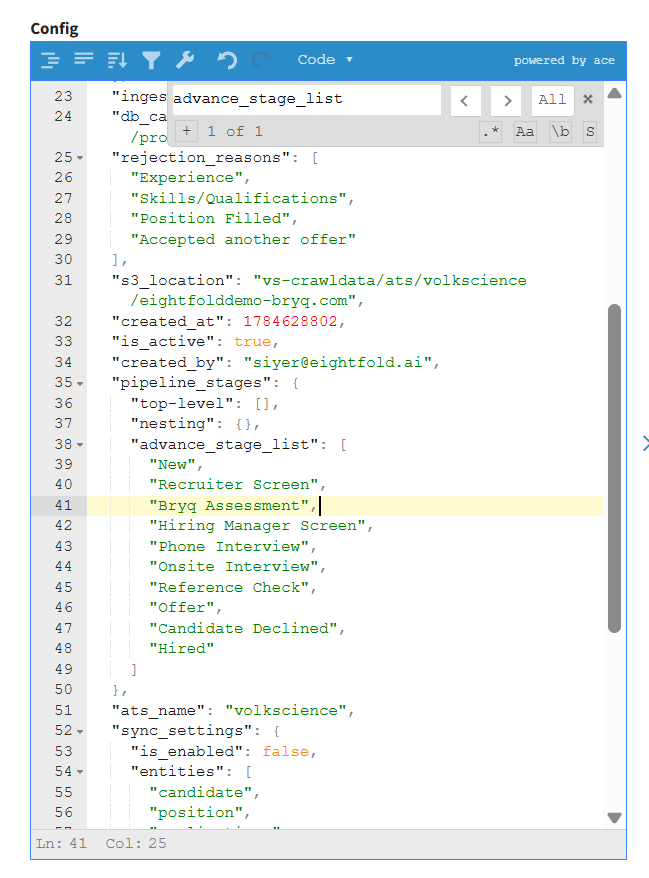
- Add your Bryq stage name in double quotes, followed by a comma — for example, if your stage is named Bryq Assessment, enter: "Bryq Assessment",
- If you created more than one Bryq stage, add each one on its own line the same way.
|
|
|
🚨Watch for errors A small red X icon next to a line usually means a missing comma or quotation mark. Double-check punctuation before saving.
|
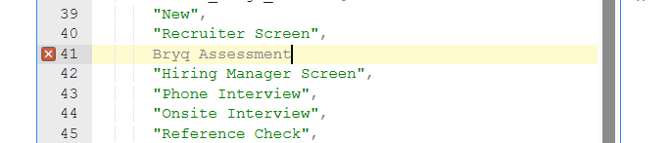
- Scroll to the bottom of the page and add a Comment describing your change, e.g. "Added Bryq stage to the advanced stage list."
- Click Compare & Save.
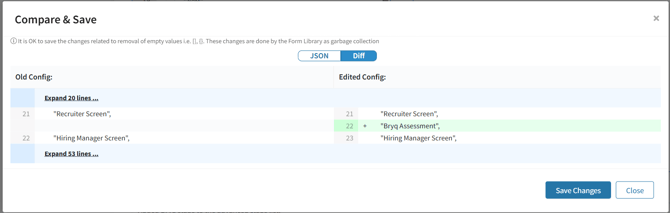
- Review the popup — the only highlighted changes should be the Bryq stage(s) you added. If anything else appears changed, click Close and try again rather than saving.
- If the diff looks correct, click Save Changes.
Step 4 — Install the Bryq app in Eightfold
With your stage(s) created and your Bryq API key ready, you can now install the Bryq app.
- In Eightfold, navigate to More > Admin Console > Apps > Install App.
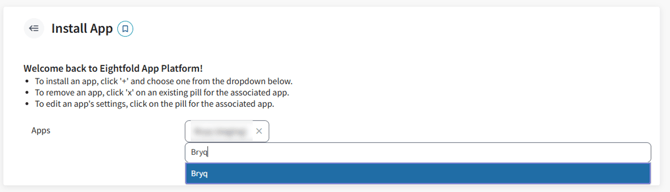
- Click the plus (+) icon to browse available apps.
- Search for or select Bryq from the list.
- In the Configure Settings to Install App dialog, paste your Bryq API key (copied in Step 1) into the App Settings field.
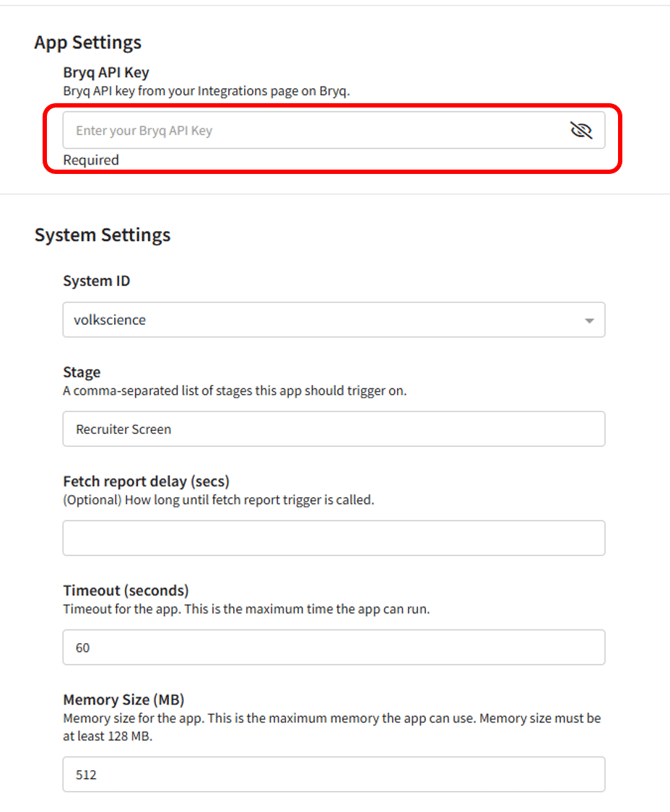
- Scroll to the Stage field under System Settings. Enter the exact name of the stage(s) you created in Eightfold. If you're using more than one, separate them with a comma — e.g. Bryq Assessment, Bryq Sales Assessment.
 Under Authentication/Authorization, set the Webhook Authentication Type to api_key.
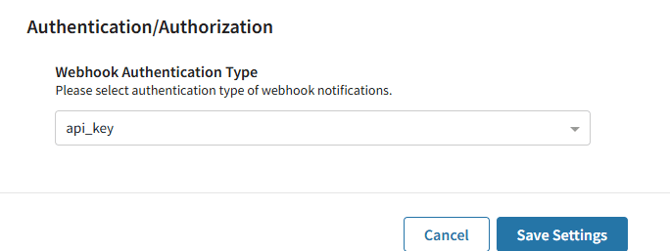
- Click Save Settings & Install.
Once installed, Bryq is ready to receive applicants from the stage(s) you configured.
|
Updating settings later To view or change these settings at any time, go to More > Admin Console > Apps > Install Apps, select Bryq, and click Update Settings. |
Once activated, recruiters can invite applicants to Bryq assessments simply by advancing them into the Bryq trigger stage in Eightfold. If you set up multiple Bryq stages for different assessments, a popup will let the recruiter choose the specific Bryq assessment the applicant should be invited to.
Bryq processes the invitation using the settings configured for that assessment in the Bryq Platform — the assessment content, email template and branding, and expiry date all come from Bryq's job settings. The invitation email is sent directly to the applicant by Bryq.
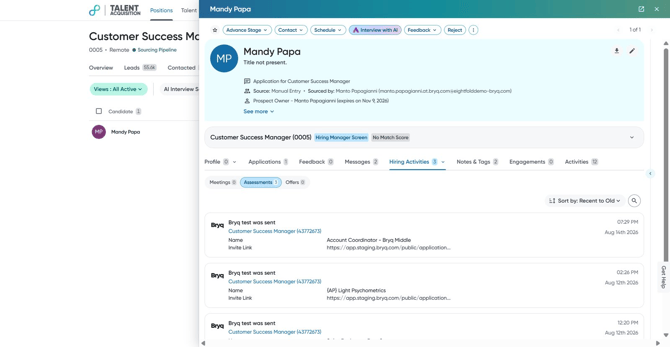
Sending an assessment to a single applicantTo invite one applicant, move them into the Bryq trigger stage using Advance Stage. This button is available in a few places in Eightfold and works the same way in each:
- On the applicant details page within a position, click Advance Stage.
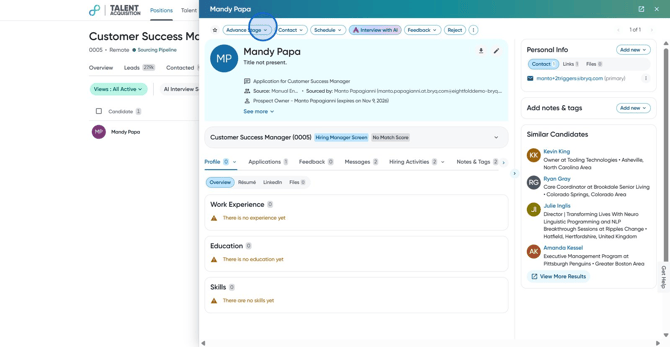
- Select the Bryq trigger stage(s), choose the assessment if prompted, and click Confirm.
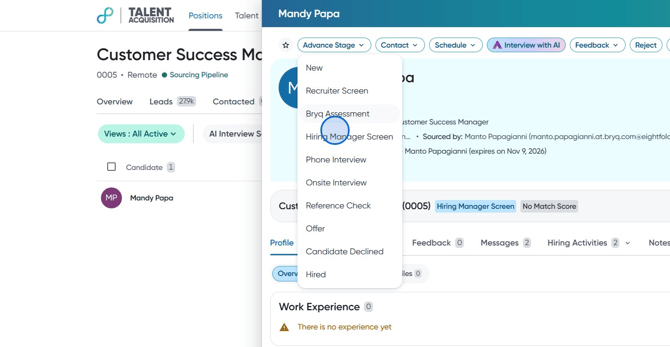
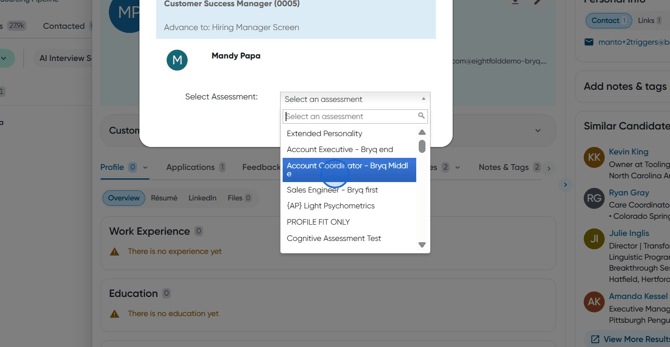
Eightfold immediately notifies Bryq to send the invitation.
|
Alternative: On the applicant list page within a position, tick the applicant, then click Advance Stage. On the applicant profile page, click Advance Stage, then select the radio button next to the relevant position. |
- In your Eightfold position, tick the box next to each applicant you want to invite.
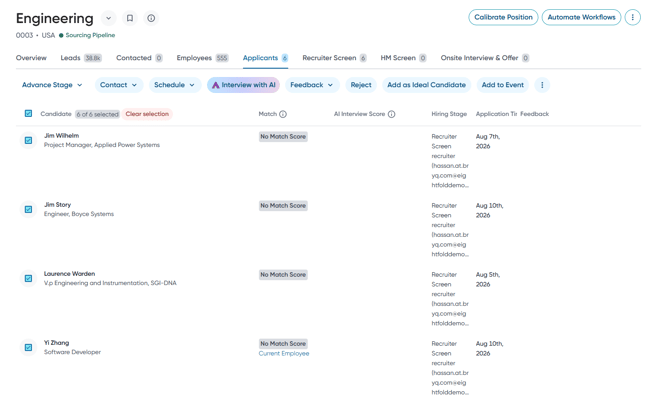
- Click Advance Stage.
- Select the Bryq trigger stage from the dropdown.
- Confirm the number of applicants shown in the popup.
- Choose the Bryq assessment the applicants should be invited to.
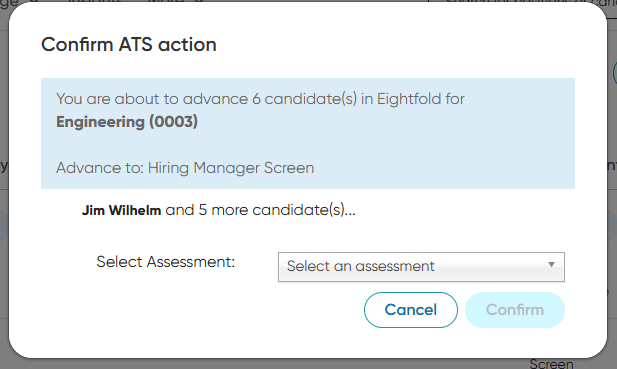
- Click Confirm. Eightfold will notify Bryq to invite all selected applicants.
Assessment status and results appear directly on the candidate's record in Eightfold, under Hiring Activities.
- Click Positions in the top menu bar, then select the relevant position.
- Click the Applicants tab, then click the name of the applicant whose assessment you want to review. Use the search icon to find a specific candidate by name.
- On the applicant's profile panel, click the Hiring Activities dropdown and select Assessments.
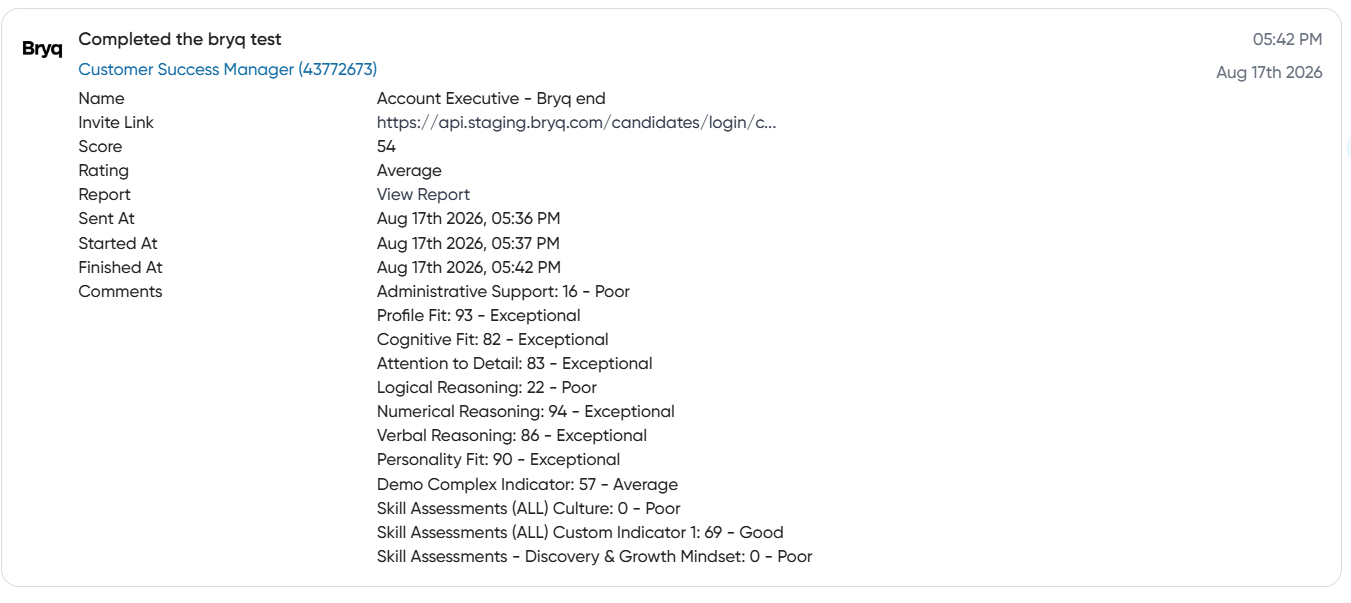
This displays every Bryq assessment the candidate has been invited to or has completed. Each entry includes:
- Name — the role or assessment the candidate was invited to
- Invite Link — the personalized link Bryq sent to the candidate
- Score — the candidate's overall Bryq score
- Rating — the candidate's overall result rating (e.g. Poor, Average, Good, Exceptional)
- Report — a View Report link through to the full candidate report in Bryq
- Sent At / Started At / Finished At — timestamps for each stage of the assessment
- Comments — a detailed breakdown of the candidate's results, including scores and ratings for each individual indicator in the assessment (for example Profile Fit, Cognitive Fit, Attention to Detail, Logical/Numerical/Verbal Reasoning, Personality Fit, and any custom indicator or skill assessment included in the package)
Troubleshooting: The assessment list in Eightfold looks out of date
Eightfold refreshes the list of available Bryq assessments for each stage periodically. Because of this:
- Changes made in Bryq can take some time to appear in Eightfold
- Different Eightfold jobs or users may see the updated list at different times, since refresh timing isn't synchronized across the account
- There's no way to force an immediate refresh — you'll need to wait for the next refresh cycle
- If you need to invite applicants right away, ask a colleague whether they can see the assessment and have them send the invitation on your behalf
To avoid delays, we recommend setting up new assessments in Bryq ahead of when you'll need them, rather than the same day.
Questions about this integration? Reach out to Bryq via support@bryq.com or your Customer Success Manager.