
1
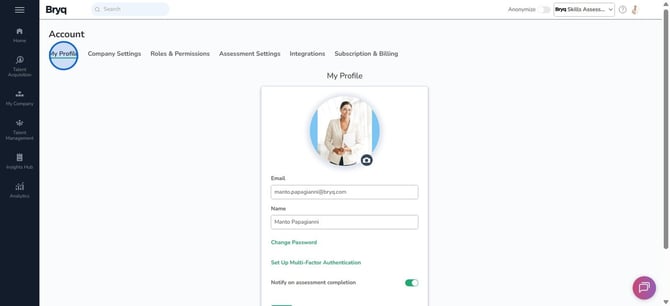
Head to 'My Profile' to manage your personal account and security features.
2
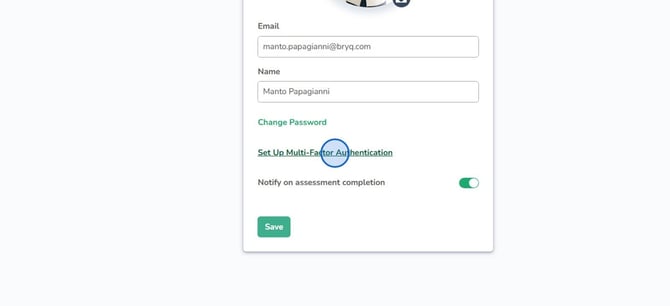
Click 'Set Up Multi-Factor Authentication' to add an extra layer of protection to your account.
3
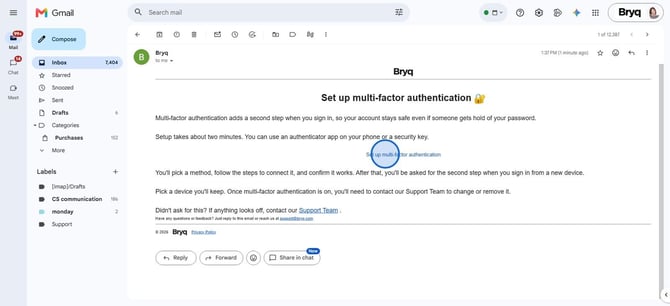
Begin by opening the email titled 'Set up multi-factor authentication' in your inbox.

4
Click the 'Set up multi-factor authentication' link to enhance your account's security with an extra layer of protection.
5
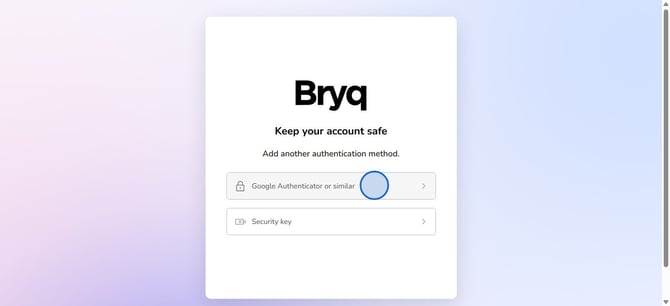
Choose, for example, 'Authenticator App' to boost your account security with time-based one-time passwords.
6
Enter the unique code from your authenticator app to verify your setup.
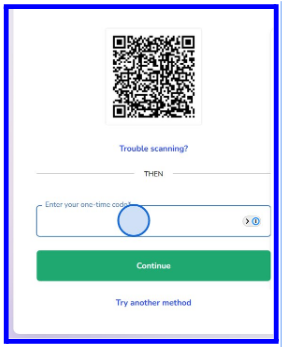
7
Click Continue to confirm and activate two-factor authentication.
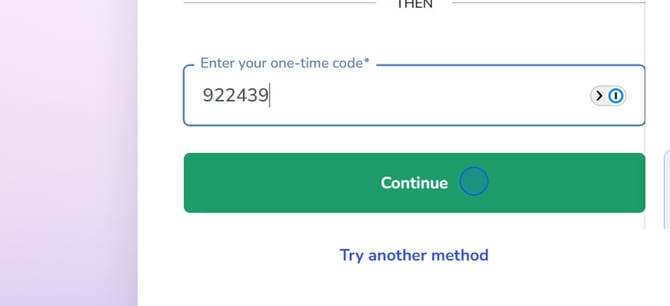
8
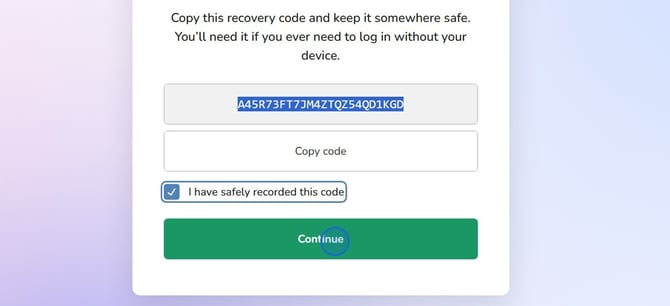
Copy your recovery code and save it somewhere safe—you’ll need this if you lose access.
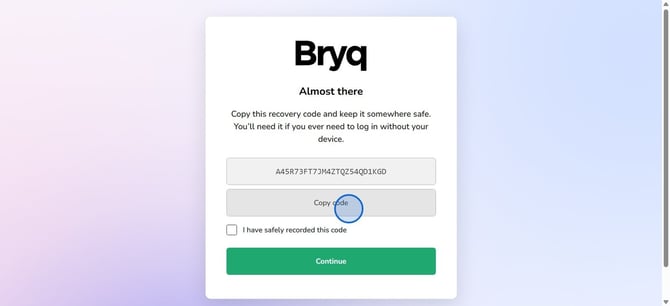
9
Confirm that you’ve secured your recovery code to keep your account protected.
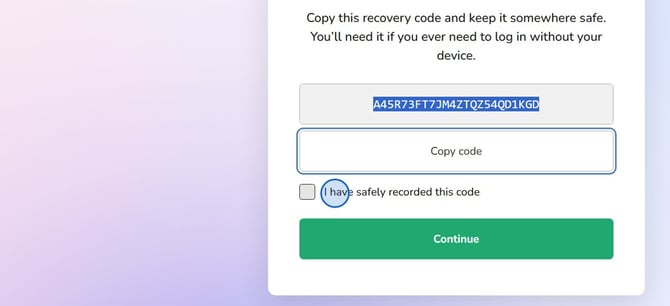
10
Proceed to complete your setup—your account is now safer with backup access ensured.
11
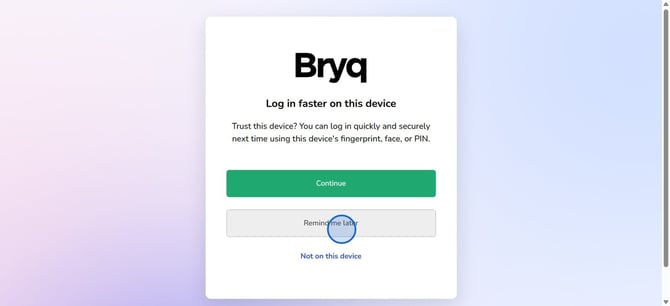
You can always set up faster login methods later; security on your terms.
12
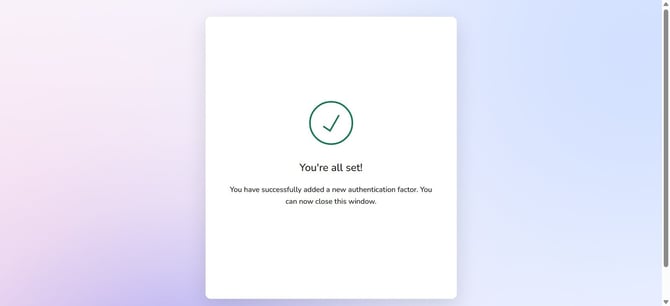
You are all set. Now you can go back to app.bryq.com and resume your work.
13
Once MFA is enabled, under your Profile you will be able to see that it is enabled, and for any changes you may contact us at support@bryq.com.
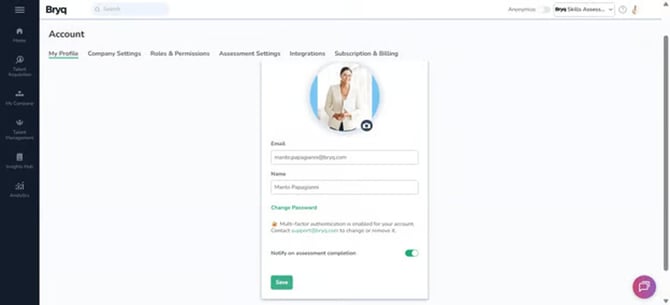
ℹ️Please note: The MFA setting is not visible to SSO users.