
What weighting does
By default, every assessment in a job contributes equally to a candidate's overall score. Weighting lets you tell Bryq that some tests matter more than others for a given role — for example, weighting a Mechanical Reasoning assessment higher than a general Personality test for a more technical role.
Bryq calculates the overall weighted score as:
Overall Score = Σ (Test Score × Test Weight) / Σ (Test Weights)Worked example: You're hiring for a data analyst role and want SQL skills to count twice as much as communication skills. You set SQL to weight 2 and Communication to weight 1.
| Candidate | SQL Score | Communication Score | Weighted Overall |
|---|---|---|---|
| A | 45% | 95% | (45×2 + 95×1) / 3 = 61.7% |
| B | 95% | 45% | (95×2 + 45×1) / 3 = 78.3% |
Even though A and B have the same raw average, Candidate B ranks higher because their strength is in the skill you weighted more heavily.
Prerequisites
You need the Manage Jobs permission enabled on your role.
Steps
1. Open the assessment's scoring settings
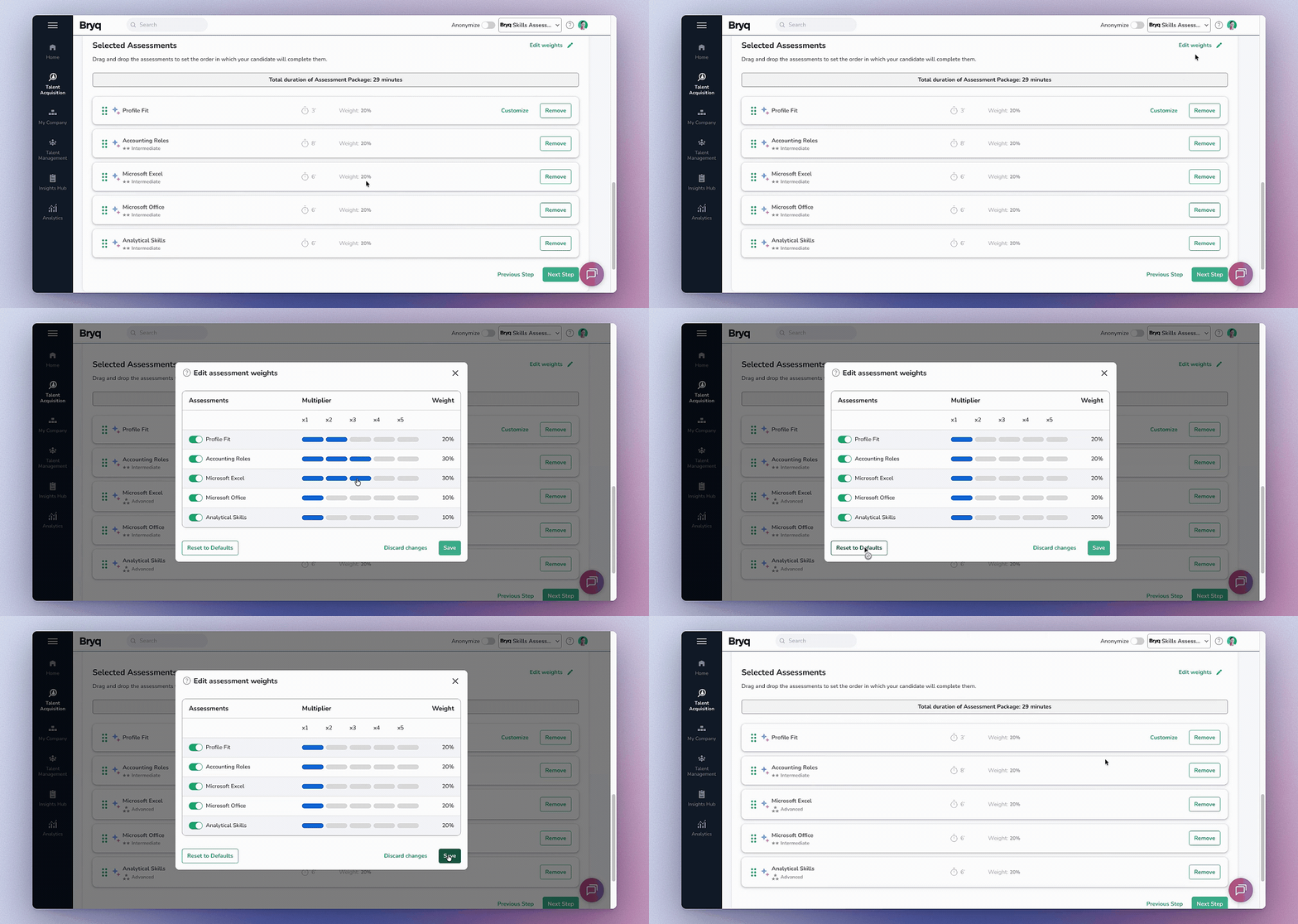
Go to Talent Acquisition, create a new job, and complete the first step (Name, Department, Job Description). Then click Edit weights.
2. Assign a weight to each assessment
Every assessment starts at an equal default weight. Use the multiplier next to each test to raise or lower its relative importance. As you adjust weights, the weight indicator updates live so you can see how much each test will actually move the final score.
Tip: Setting a test's weight to 0 removes it from the overall score calculation entirely, but the candidate's individual result for that test still displays on their profile. This is useful for tests you want visibility into without letting them affect ranking — for instance, a personality assessment used for team-fit context rather than pass/fail scoring.
Note on active candidates: If an assessment already has active candidates, you can still change the weights and Bryq will recalculate their overall scores using the new configuration in Bryq. However, those updated scores will not refresh in your ATS.
3. Confirm and save
Click Save weights. The change applies to all candidates going forward under the new configuration.
Verify it worked
Open the assessment's candidate list and add the Overall Score column if it isn't already showing.
A few things worth knowing
- Weights only help when your tests actually differentiate candidates. If every test in the assessment gets a high weight, you haven't created any meaningful prioritization — think in relative terms (e.g., "SQL matters twice as much as Communication"), not in absolute values.
- AI Fluency (simulation-based) is set to a weight of 0 by default, meaning its result is visible on the candidate profile but doesn't affect the overall score. This must be turned on explicitly if you want it included in ranking.
- If every test in an assessment is weighted to 0, no overall score will be generated for that assessment.