---
title: "Comeet: Set Up, Integration, and Use | Bryq Help Center"
description: Bryq Help Center
---
[Skip to content](https://help.bryq.com/en/articles/4708111-comeet-set-up-integration-and-use#main-content)
[](https://help.bryq.com/?hsLang=en)
Open main navigation
Close main navigation
How can we help you?
- There are no suggestions because the search field is empty.
1. [Bryq](https://help.bryq.com/en?hsLang=en)
2. [Set up and Configuration](https://help.bryq.com/en/set-up-and-configuration?hsLang=en)
3. [3rd Party Integrations](https://help.bryq.com/en/set-up-and-configuration?hsLang=en#3rd-party-integrations)
March 6, 2026
# Comeet: Set Up, Integration, and Use | Bryq Help Center
## Integrating Bryq and Comeet, setting up jobs and assessments, sending assessments and viewing results.
Comeet is a collaborative recruiting software that integrates with Bryq to streamline the entire hiring process with your colleagues, start to finish. Below, you will find easy-to-follow instructions and a quick video!
### **Setting up the integration**
To begin Bryq’s integration, follow the steps below. You will need access to Comeet’s integration settings for this set up to work.
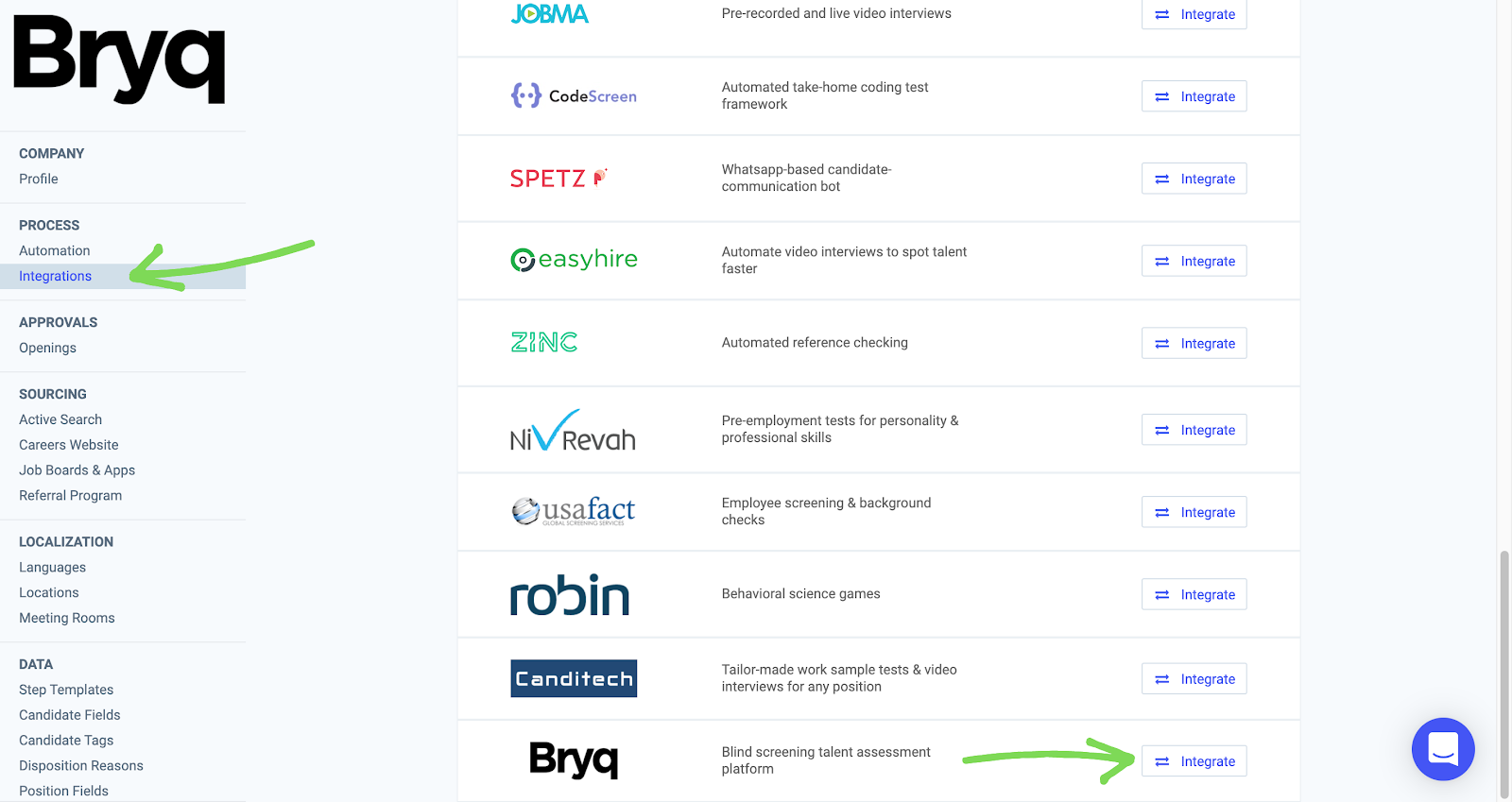
1. Go to your Comeet profile, select [Settings\>Integrations](https://app.comeet.co/app/#/company/settings/integrations) and click on the **Integrate** button for Bryq.
[](https://bryq.intercom-attachments-7.com/i/o/275571857/937f6f004fcfb0e11a2718ff/rv5B2CbgUa65M9qlEZ9EVjMk2dCEMBbQm_vW8DkDKxbyYGVoDJxDv2discXFXf0ttgrzFaw8bDX3H2KqQ11iIocUi4aiOgvDhPacr0_gT70FWRp0jNAFmfAanA2bdDJb7ADRJk3m?expires=1765189800&signature=8caafd12b88ddc10a9c669fd27c6ff8d51219efc3e1231dfff0fb353609be68b&req=diciE85%2FlYRYFb4f3HP0gCZFIUmFYvSIV0%2Bx2DSs58HRS3INWdUNhrDFtvnd%0A5pFk79kF4FKGz3eMiw%3D%3D%0A)
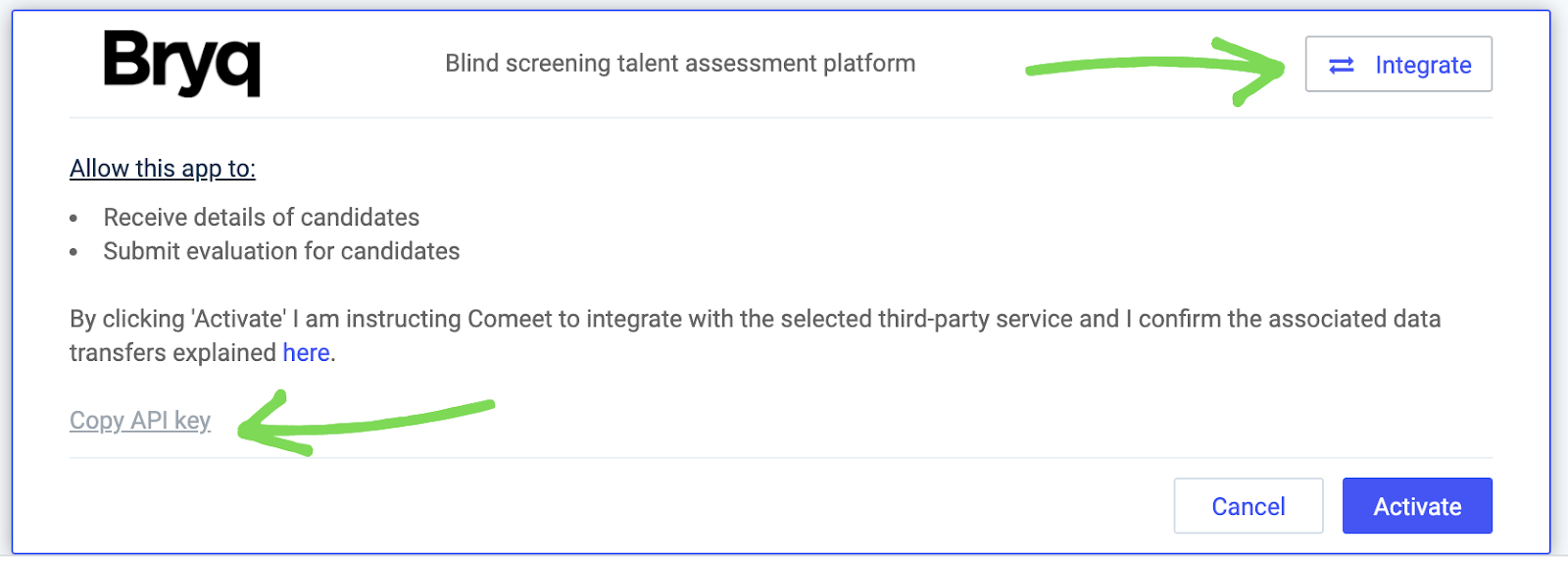
2\. Next, copy the Bryq API key from Comeet.
[](https://bryq.intercom-attachments-7.com/i/o/275571860/5fb2a5c923209da38cce2efc/CDob__1d4se9r4T9fjj_FNPriFTxNDZ7yZpjrKrtjAzSyPtn033DKcf8kvdXTo_5aaAc46bJgBAohEhaFGLccgayZYwf3nvHzP5sjPah2teyxkg0Brzil2QYKiO18QuCarrPURLn?expires=1765189800&signature=77f9284a1d4c1ef87add381c48145f93c4d2a64b0002e493926982f97c4cfb2b&req=diciE85%2FlYdfFb4f3HP0gAQaYVxcH%2FV4AxoCdBDcn%2BBR0Ua2chpVV60Dzu2A%0AOqN4aUVz83LGKhFlgw%3D%3D%0A)
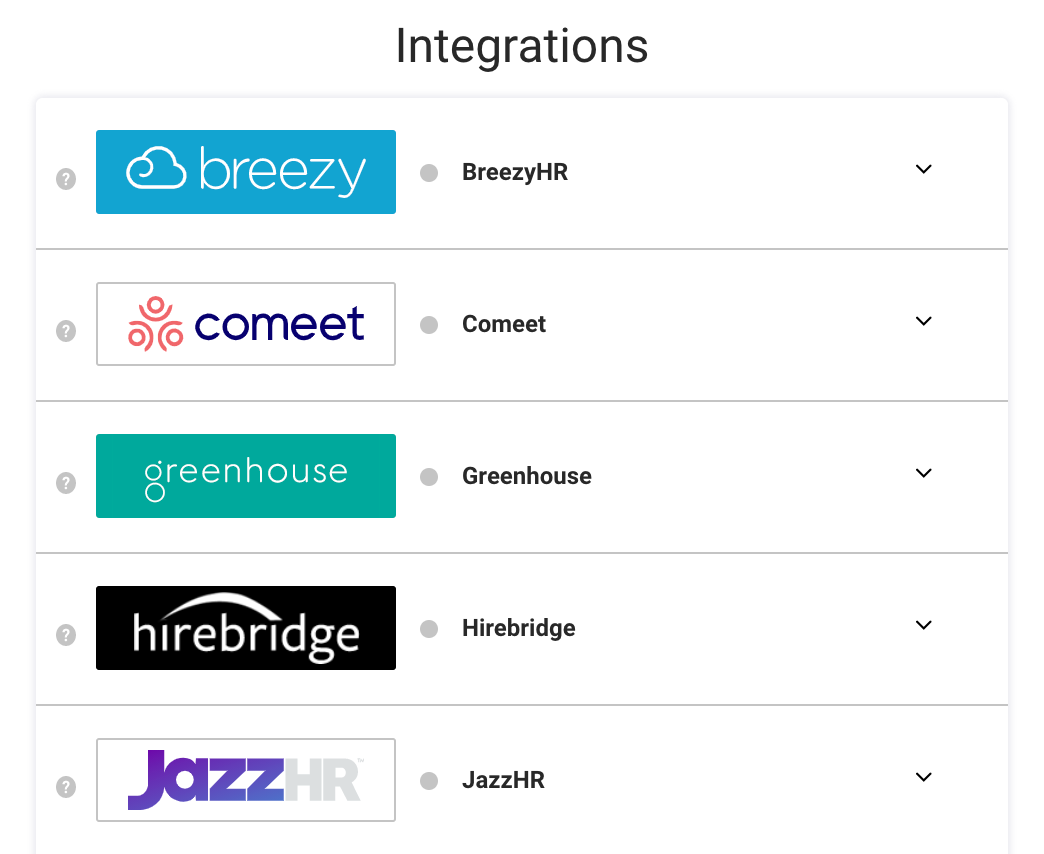
3\. In Bryq, go to [Company Settings\>Integrations](https://app.bryq.com/company) and click on the **Comeet logo.**
[](https://downloads.intercomcdn.com/i/o/402094903/0a01fa86d0a1adffcee2194e/Screen+Shot+2021-10-11+at+3.18.11+PM.png?expires=1765189800&signature=ba3d7774cb303d44d1ed99fdc48c23c03f67d12af67833f6b2f17e45a239cfd4&req=cCAlFsB6lIFcFb4f3HP0gDotRPcfkLD6ndkJBavI4e8v5zL5BqY2jnqQZr8L%0A5O4fnlEgeZRB6Mdneg%3D%3D%0A)
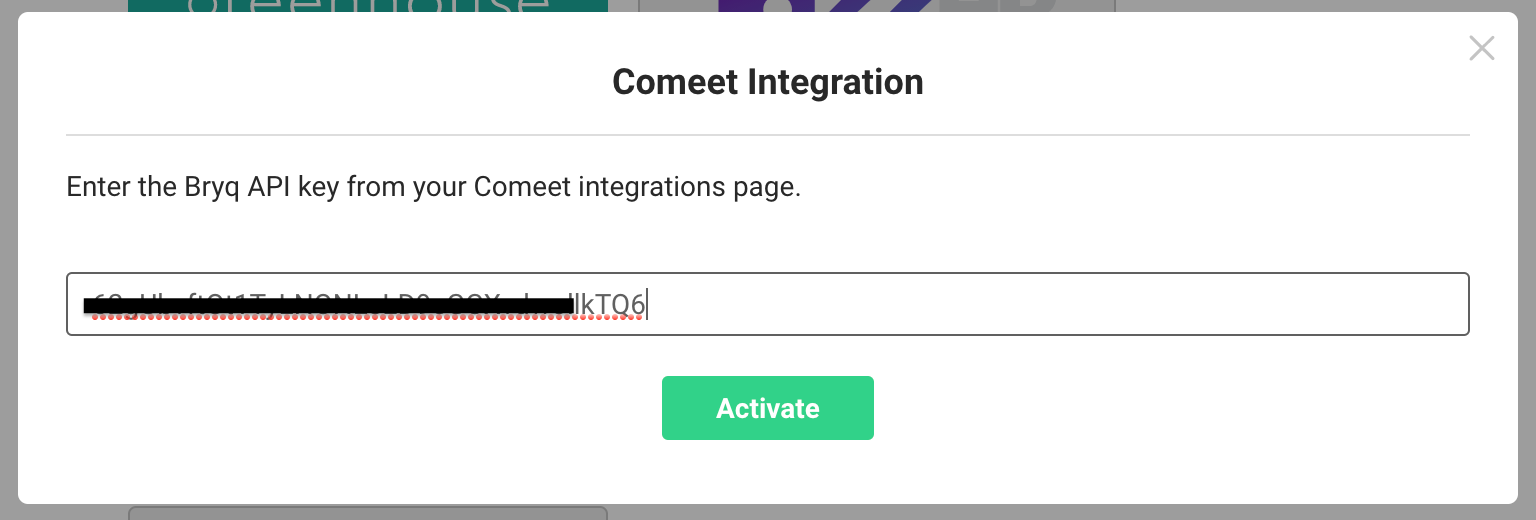
4\. Paste in the Bryq API key (from Comeet) and hit **Activate.**
[](https://bryq.intercom-attachments-7.com/i/o/275571870/104e9a2e2a2b9e888ed5ff75/5ZWNYVPnk5AqK639yRjofvTN-WBTtv4kibkuWjfwB4E_eNBeHG1HAx0w8JwZBrnqfiLzFrH1OFolvfO4wpBSlAOTQq3oXS9rv1kI31o4EpIrloBmsGRAde0PTcYkhPoTwOVMyepM?expires=1765189800&signature=13f8c22c5aeb92b4c110f9e0b900bbe60c299454b25b2bb8e6d2a8350563ae10&req=diciE85%2FlYZfFb4f3HP0gCTZ3TDQNZfUT7O9KjkS5O1%2BSA7mxaBPWB36nxWq%0AUn391Zby1%2BF7Ij4Acw%3D%3D%0A)
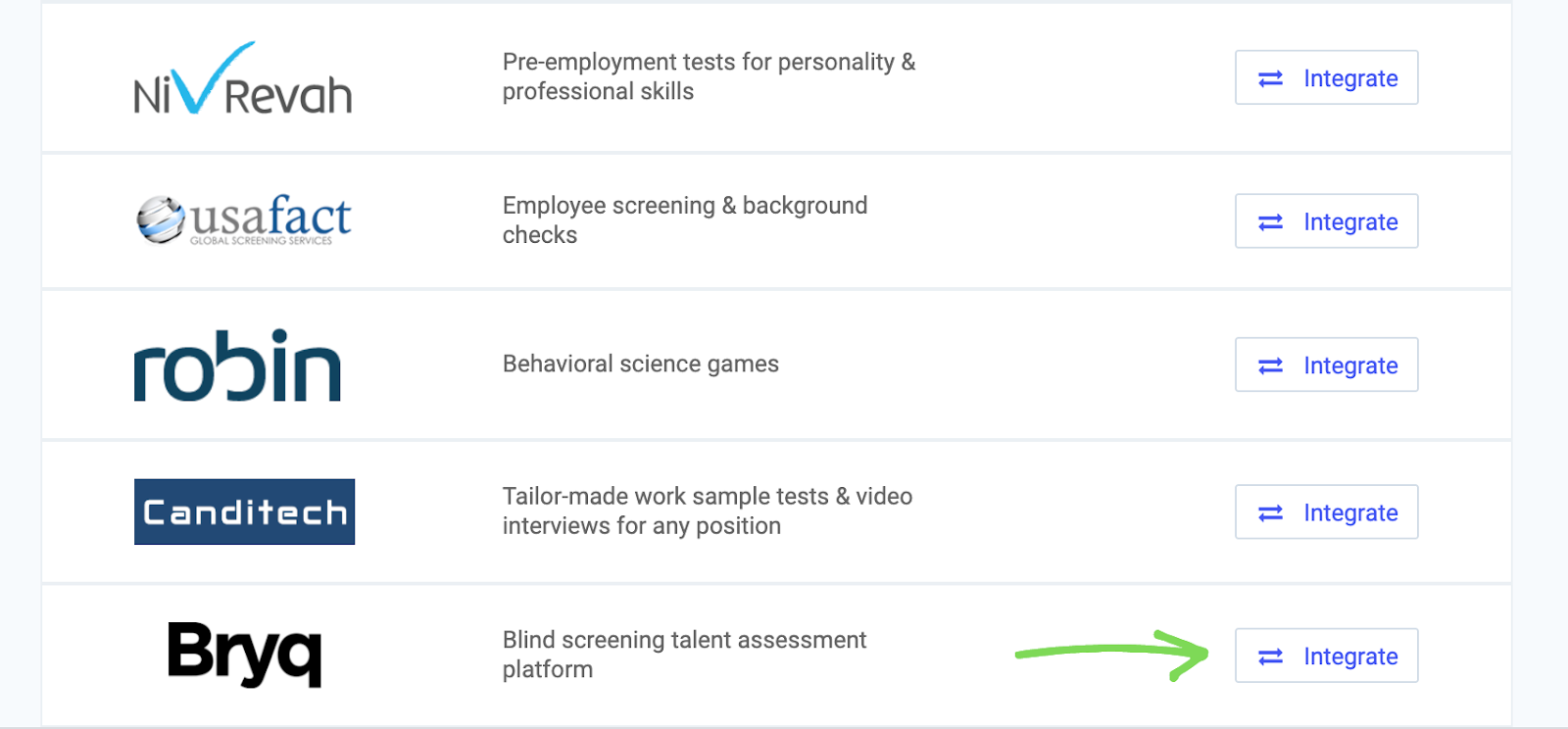
5\. Go back to your Comeet profile and scroll down to Bryq, select **Integrate**.
[](https://bryq.intercom-attachments-7.com/i/o/275571876/8fe84e7f0b84091550a18117/NFrck-Y8qPOPcOTrTH6gFRbwMp5ozjmS4dUAD8NqrgQSQzBRAhM1FgpfJ7YXOYILGREEam6EhzMgJ65cVxgCJFcKh9jkV9PZZCeHq4_6xekAkdN5NSWS-fG9_uK7ZkdViSeNOoXp?expires=1765189800&signature=de26728099ac039feb6713e8622c957ae0cc9eb70f28c604c6ad39eafd246143&req=diciE85%2FlYZZFb4f3HP0gGHzcAstd%2BroSAkXMz7lfkm%2BiqeG82UQVqVZtw2j%0AoGdzPMqaIWuy7a2caw%3D%3D%0A)
6\. Your Bryq account will now turn green and say Active on the Comeet platform. You are now fully integrated!
[](https://bryq.intercom-attachments-7.com/i/o/275571880/54361a5cf0df1d421c697ba7/UGgtU1PKmo3NDPPqwH0HJ8tJmIu82GGZkOiAsr3Nq1nFXU5gbzWwKO_4wuQ7SPrJL5qkMmDMI1hSQcIacmstCEe-Yff21eZ24Gc6SLINJjII51XwytnFPVnwOYfYVmt1LBF3oN8N?expires=1765189800&signature=c48f1b2b1a14a9d6e6c0be238337d943def66a1a401fefb08e89979803bcca05&req=diciE85%2FlYlfFb4f3HP0gFdEDb%2FlqipF8SYLDgKYguEg8PWQTUkgwv25KqtQ%0AwOGnOBwhESd29lPBCA%3D%3D%0A)
### **Using Comeet to send Bryq invitations**
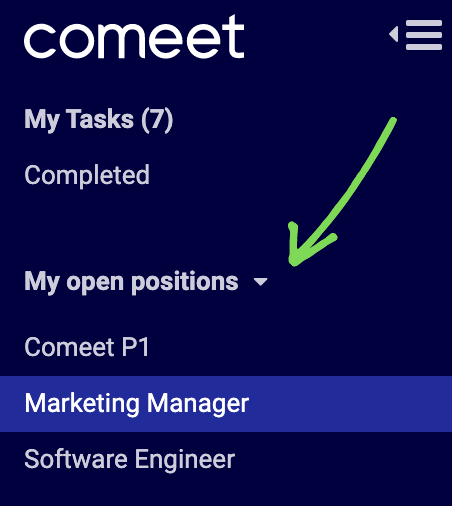
1\. Go to **My Open Positions** and create a new position or click on an existing position.
[](https://bryq.intercom-attachments-7.com/i/o/275571881/cf1a99b30711ac5d1f32a717/qNGZG_v0ZCP4y5sBzQmKQrXGZlvCl9FrSA-htY5y9EUczDM9nh4GYS32JFYRt16HHOoJeUH-mQ27IT8CnKXb5euUU2CvCAXRn4vN2tmzihaPD91uY5VMBzcxIDeryDAtPKcnCvHV?expires=1765189800&signature=fda2e8a2c1e82bc310834db94f9d07e4f81c241a05055cd791bb05cbf0b10706&req=diciE85%2FlYleFb4f3HP0gM8g2Wx5e%2B7hAQoDhkjVkcYICnWyyp56%2BSf8ZIqs%0AE8T7QOFiI6dmmoB1pg%3D%3D%0A)
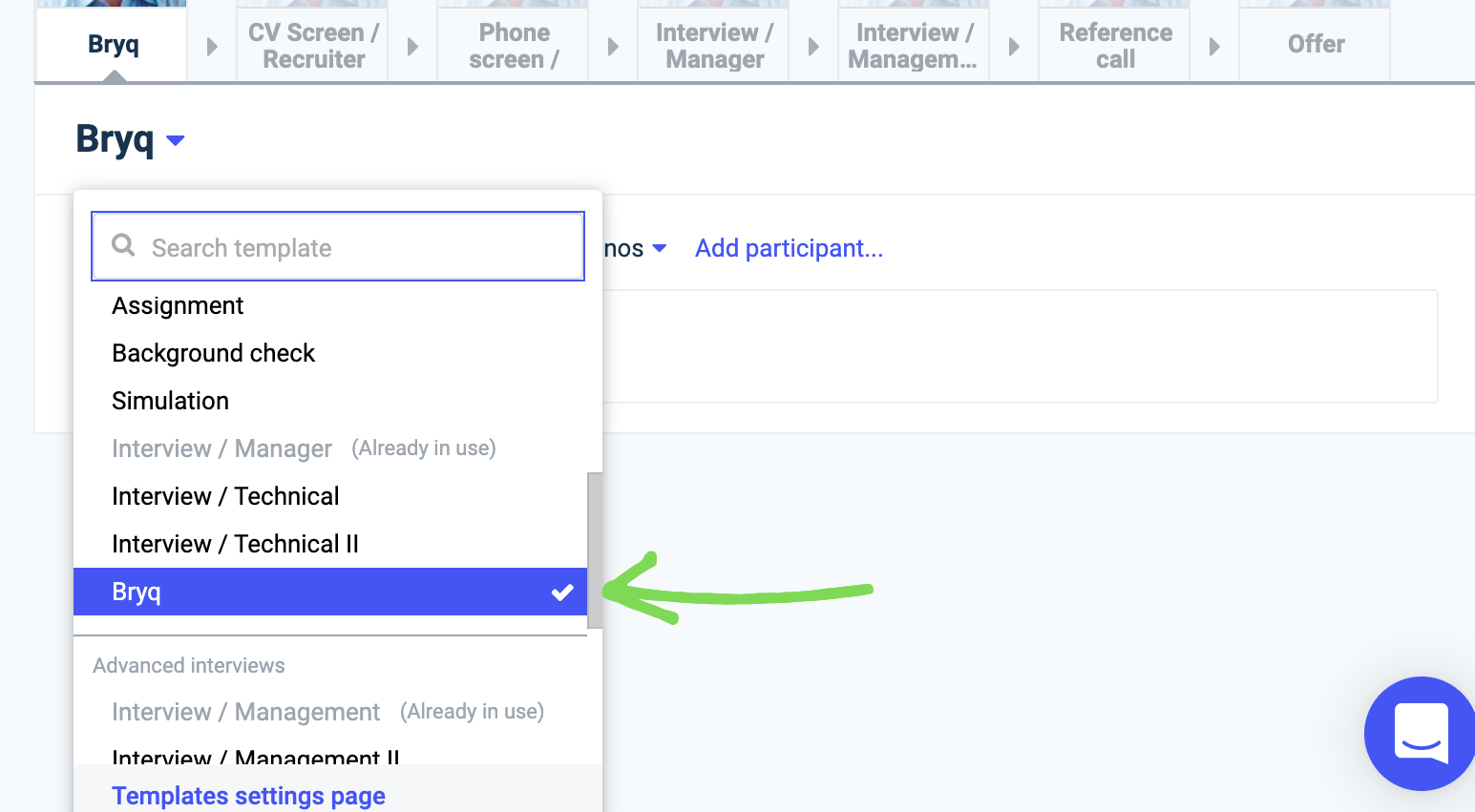
2\. Next, go to **Workflow**, and **Add Step**. Drag the new step to the appropriate place (usually in the first place, if you are looking to use Bryq for blind screening) of your Workflow, and select the drop-down menu. Choose **Bryq**.
[](https://bryq.intercom-attachments-7.com/i/o/275571885/2a30670812a0fe4665011d6b/NgzT7gDdxUuQQpU4isjjxiHhB6JPnlte-Bkix5zaBIxiQFavYjVDTbj4GywwyR65p3LW2Nc9WlvtxN4j08gJq6AiPW92m5zeC3KF0cBE_yuUqJ0TJ3GOeIuuFrEWk2qMcXKl5tyP?expires=1765189800&signature=9ca7e768e30d5dabc532e5e4276ea53b262934df60bfc5da201bb257da9b6e15&req=diciE85%2FlYlaFb4f3HP0gK4LXkXZaVxgBmJor9hZmK9JgG5VfUjGAdTVevkU%0A3gSbI%2Fm9UANYRvDJoQ%3D%3D%0A)
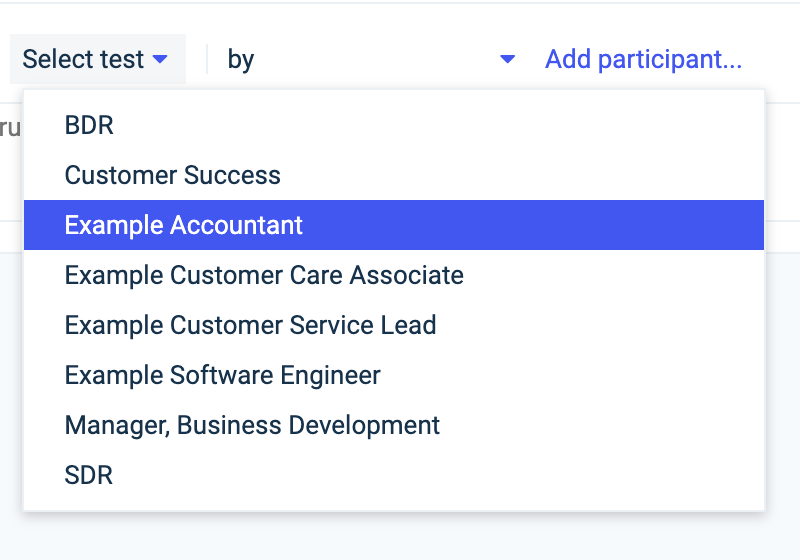
3\. Choose which specific assessment you will be sending (the assessment profiles need to be created in Bryq)
[](https://bryq.intercom-attachments-7.com/i/o/275571890/fa603832233cb6b2e3bf47e3/vkKUfjFLjcWIzm6Fo4o7m04QILhn3TJEXVFdya6rMz1_jEN1YrH556KkFojobaYV09kX2STo1LzR5BYSrDsaCwDHK6dfH3xOq9RIqNeSTOcm2OYZvnsmuvpQBppmQKqKq6-2jJtn?expires=1765189800&signature=05b68c95cf2075e911791d597fbbed74da139e450943382976cec05fb43542ee&req=diciE85%2FlYhfFb4f3HP0gJs8y%2BNh7vGa5moEYWwo17hJXDKqTT32tEI7lXkE%0AT1CYueRE1piYknby3g%3D%3D%0A)
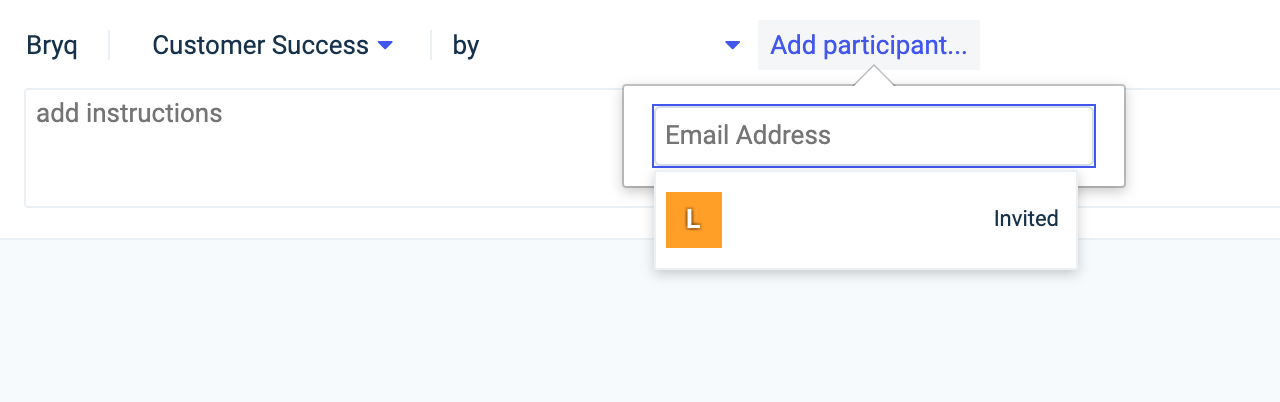
4\. Enter the candidates email address that you wish to send the assessment invitation to.
[](https://bryq.intercom-attachments-7.com/i/o/275571892/b9894840624486a5b58bfffc/lxY5lW59pXc15pQkn4HCIra0ZS6krf7fP8FfD6yFoFFnwfdApf6rNNbwg-zMIk-TLkz-VJIu2nPk5CEoww7JEKRS6Glpx_Mqcj2bKUnjzIETeoLvylS8kDUv2hHQiknFTv_InLOW?expires=1765189800&signature=2fd1c48b5a546cd91ab27e17dfec8ff669dd735652eca6449f3fd079b8dc23c9&req=diciE85%2FlYhdFb4f3HP0gLPkkvlO%2F93GyaWnCArCIV%2BRDgkq%2FXv5pd4UefwC%0AwVmyHKTJvznb%2B4gXmg%3D%3D%0A)
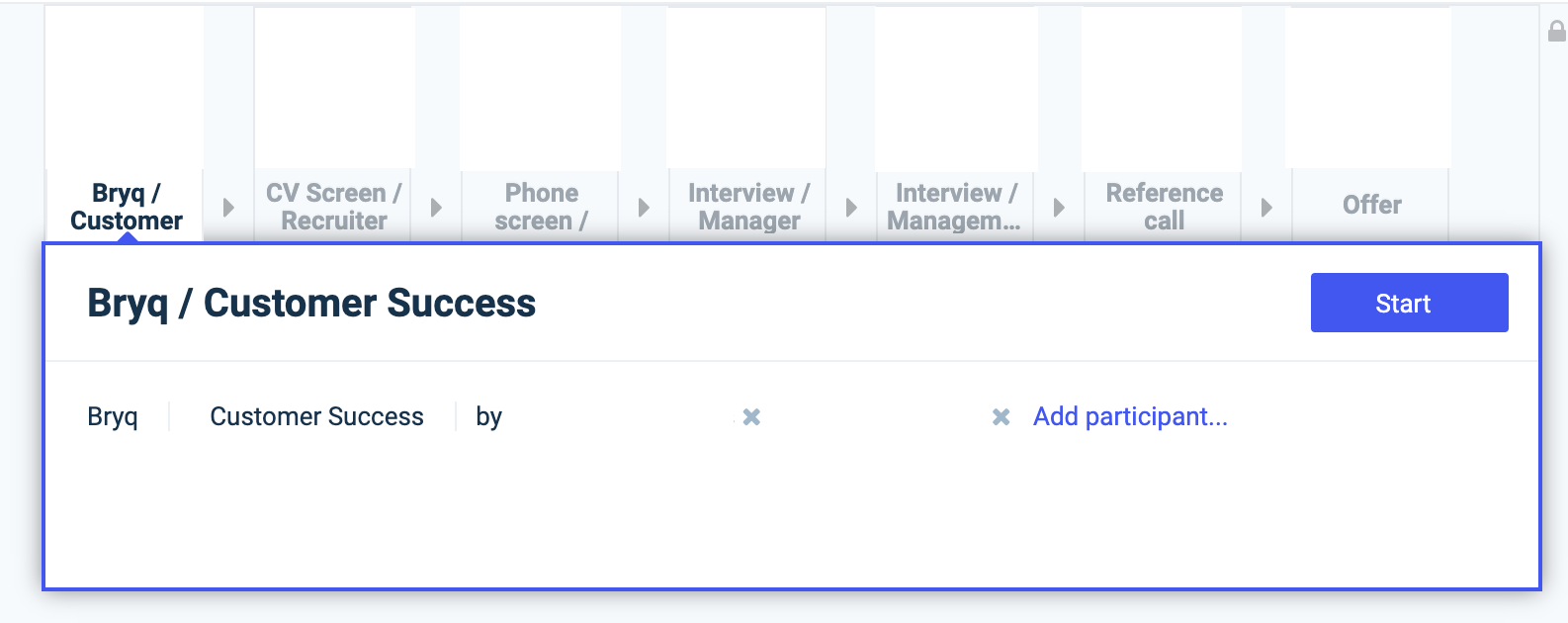
5\. Once these steps have been completed, go to **Pending Tasks**, select the candidate you would like to begin with, and select **Start**.
[](https://bryq.intercom-attachments-7.com/i/o/275571893/5af05a6176674236db04acee/c0vy05ZSzVlll8sUPb8JDcvfbaZoOohFSpnoGuajx9635ksav05K7qt5Of5NFHE5kdbZ8_00sgH05FWgWHhFKSBTm92apYg0bz1FUgheKyAJox5M4mvEhSErZgTdq8PaMRtjjypf?expires=1765189800&signature=1c63811c7ea8352147284956b9fefd6dd9314a27d2903177ce1fbd36d8f354f9&req=diciE85%2FlYhcFb4f3HP0gJkiDTsER%2BAxb0l5567ixE9GU3keNkfWZW561bcr%0AtosU4zmwkwOo96wTZw%3D%3D%0A)
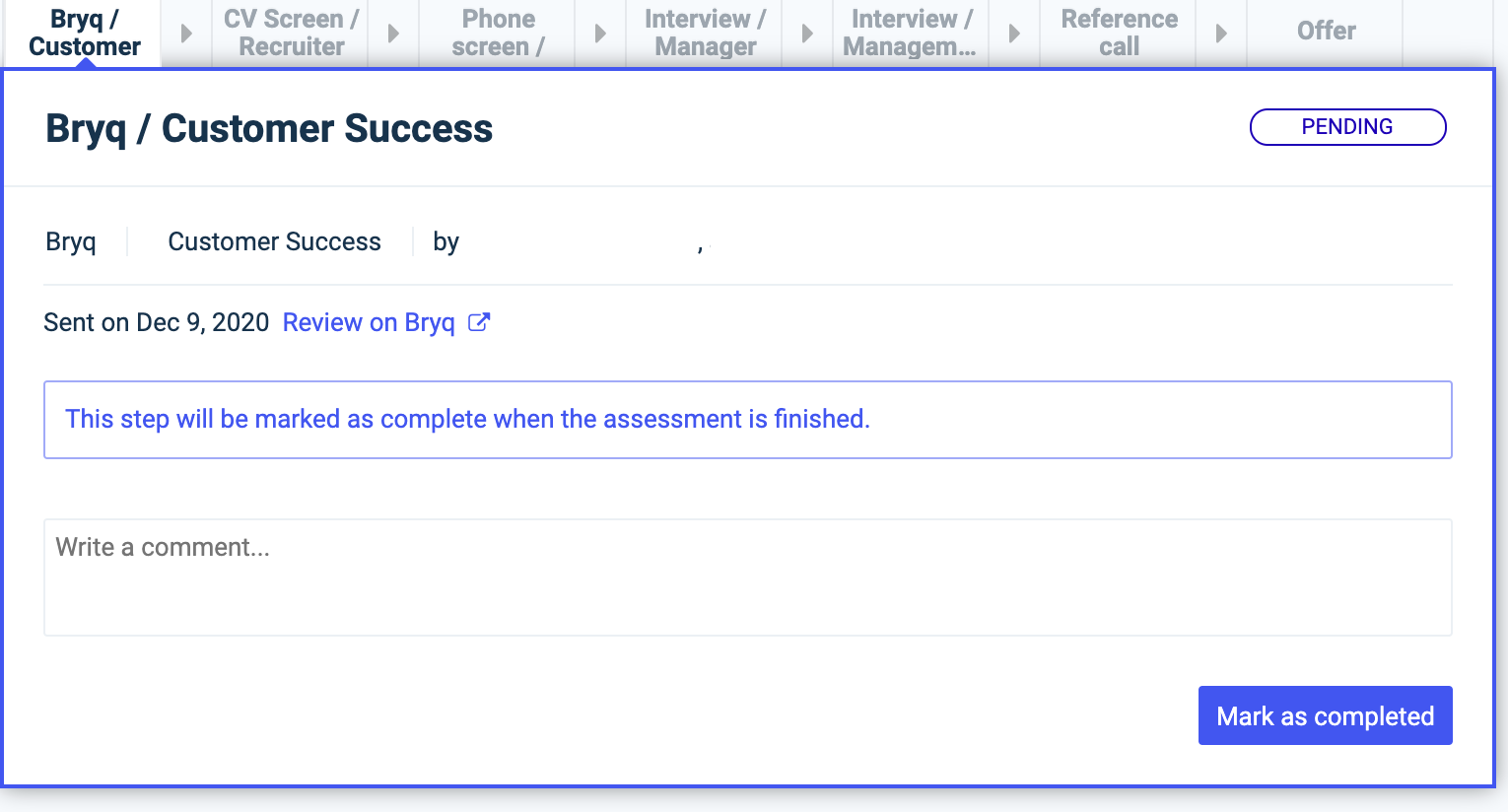
6\. If the invite is successfully sent, you should see the Bryq assessment as **Pending**. This will update when the candidate completes the test and sends the results to Comeet.
[](https://bryq.intercom-attachments-7.com/i/o/275571896/5d1fa80d28617091a96378e2/uJxGuHbQbJ2JprY2Xc76BoFmKBo8X9fRfDfQa_fj-39pL8ELdkUSyXdwqAXHRSuoUK9lVuDOctWiYJBGBzAOCainZGTCEmYmrn_9wvN0DVW6YGLrSnQ5HsyFrN63e_nbpxiRajSn?expires=1765189800&signature=eac7634b9e50724ee277053184884fd774287f4ffa0dca4ccde129f1b4e8acea&req=diciE85%2FlYhZFb4f3HP0gGluMb5dZGzb6wNze9Y3Seiiyz5H4eAjQWgTnRdE%0Ak8nobX4TnO9nCJFGTw%3D%3D%0A)
### **Reading your candidate's results**
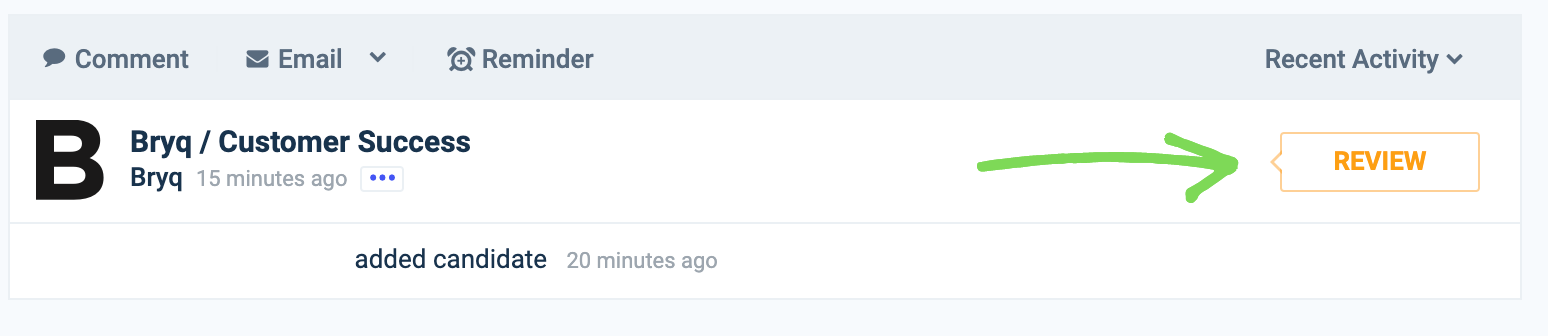
1\. Once the candidate has successfully completed the Bryq assessment, their results will be populated into Comeet and you can review them in detail. Clicking **Review**, followed by **Scorecard** to see how the candidate’s results.
[](https://bryq.intercom-attachments-7.com/i/o/275571900/e5df3c7dc6a9fd5eb378d5a7/G1kKHb4O0H-va6LawXVyZAAE5sTgdTIqDkDim8qOySzuyL6ltP_4ynEf256ttICvdYVBOSR_IUTkMhSThkbN0ZUQjyYemTtTFfooQmdkCBIM5f0xVwdbibDo6QNhCuuVasCBxmOa?expires=1765189800&signature=26da84874442687ba209448c63c3702c37552f3f963119faed4a2df12c07010c&req=diciE85%2FlIFfFb4f3HP0gOF1jwt2vBPax6II0fErCP%2Fu%2FoeMFgPg8G%2BNgsgk%0Apj0xvEAjY645Jp5jrg%3D%3D%0A)[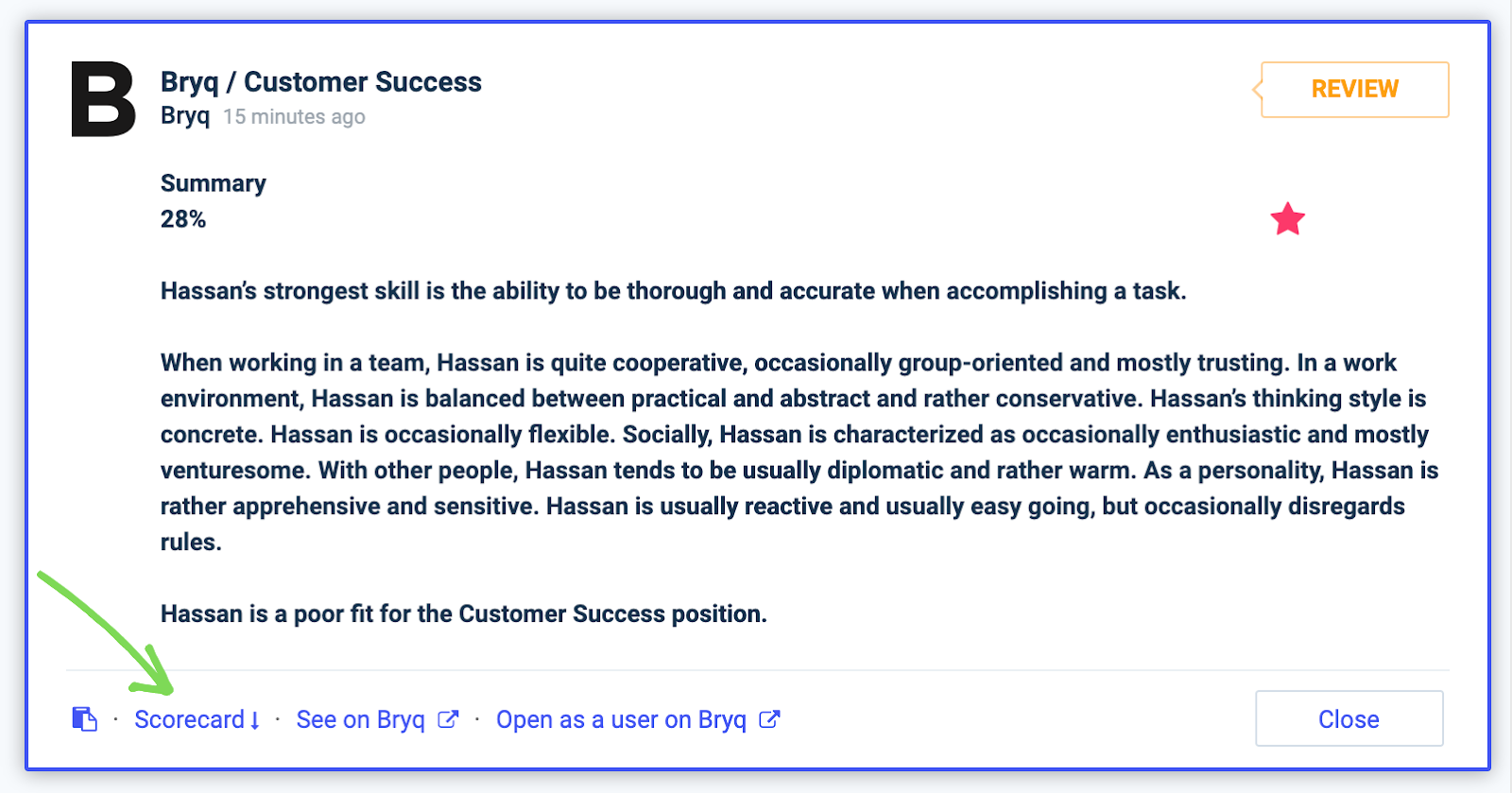](https://bryq.intercom-attachments-7.com/i/o/275571902/d1a03400e3c957823153b5c4/8KZVO7Lxfb8SEJe_d_95wZBq10F2lKvZH4ZZnyKLZnXrQByJa41soqEmG0NTGZieqHzSPhDUmW-6kMvCU8xrdzXbTTZWa6ECEzsPvrQUK_q7wiO6YBzGza_cIEELo0r1CGkpO74N?expires=1765189800&signature=af0fc3a513947ded952563c58f284bfa448178d0cd9b2654dd356bea7d842571&req=diciE85%2FlIFdFb4f3HP0gOIht6R%2BM0zbKkcIf4HdCN4X9t%2FByTWUrwz%2FI%2FM%2F%0At%2FOfpfiNterFi81xFA%3D%3D%0A)
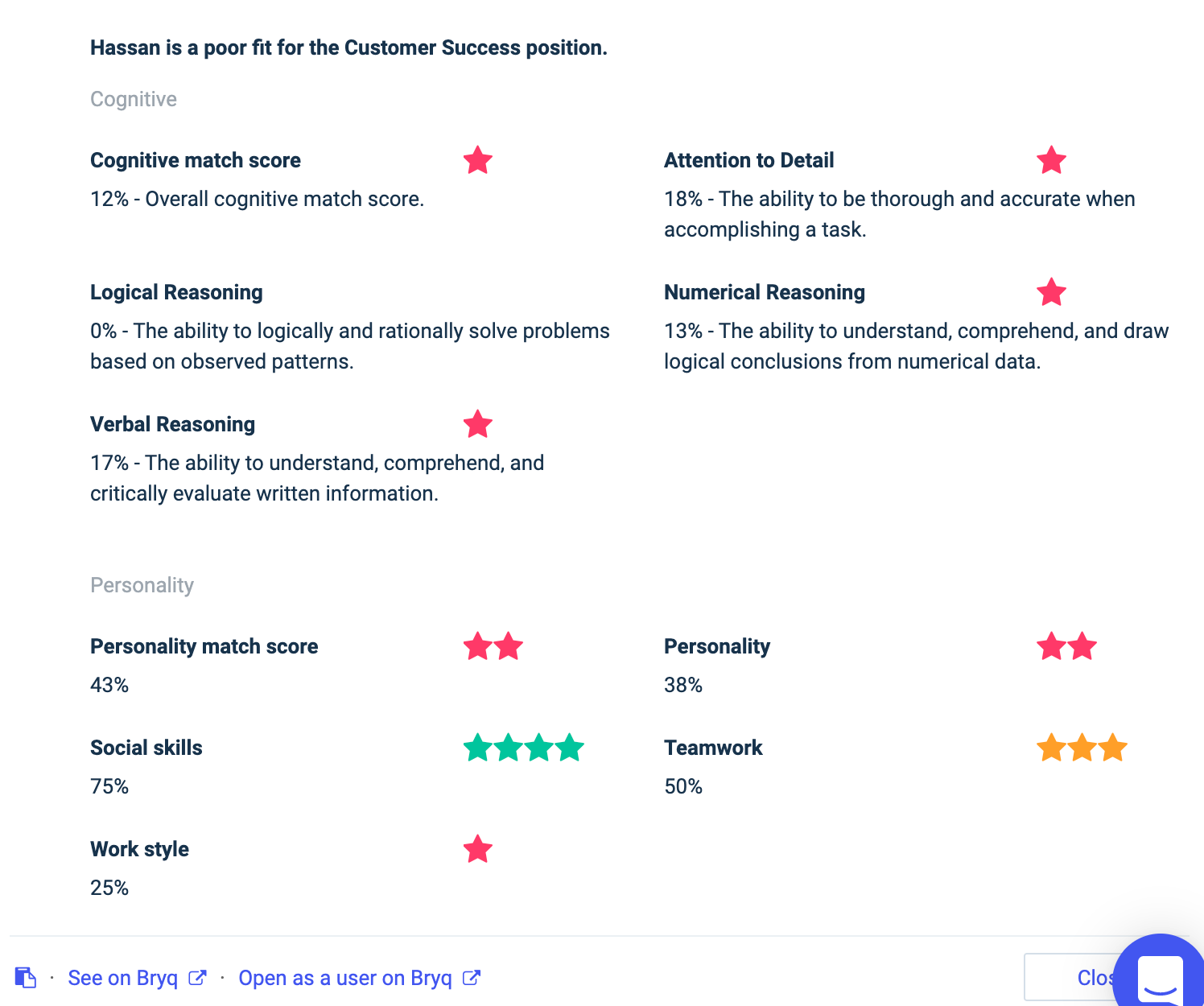
Bryq will automatically tell you how good a fit the candidate is for the specific position. Directly from the Comeet app, you will be able to see the candidate's match scores for cognitive skills, personality overall, and the individual personality traits that are important for the specific job role.
[](https://bryq.intercom-attachments-7.com/i/o/275571906/f0d3a07a2648b66f801f6015/N47EcwOg5G-3m-U5J5ptoY6Nfn1A6BFzyeSfrJ2qwFtgZFkqiOLA3lSqQ1AlRkspMyPlDPd8_Rckwy1oYoXxQXWy6nnlBHuSXW7BTg40OEgwJXHpIXsblwVv5kWcyJ_Z9YYxiiFW?expires=1765189800&signature=7fbce087cebf3825b6b3e13bb8ebbda627adf8df70c865ff46cde1426d9fd18d&req=diciE85%2FlIFZFb4f3HP0gDtSc4a8peP4SqvxkPLAFHyt%2B20aI46708a831kP%0AcjjVpqU7mVAuGQYQjg%3D%3D%0A)
To see your candidate's full results, click on **See on Bryq** and you will be redirected to an anonymized report that doesn't require any further login (great for your hiring managers).
By selecting **Open as a user on Bryq**, you will be redirected to the full candidate report on Bryq, which includes the ranking of your applicants, job role details and our personalized Interview Guide feature.
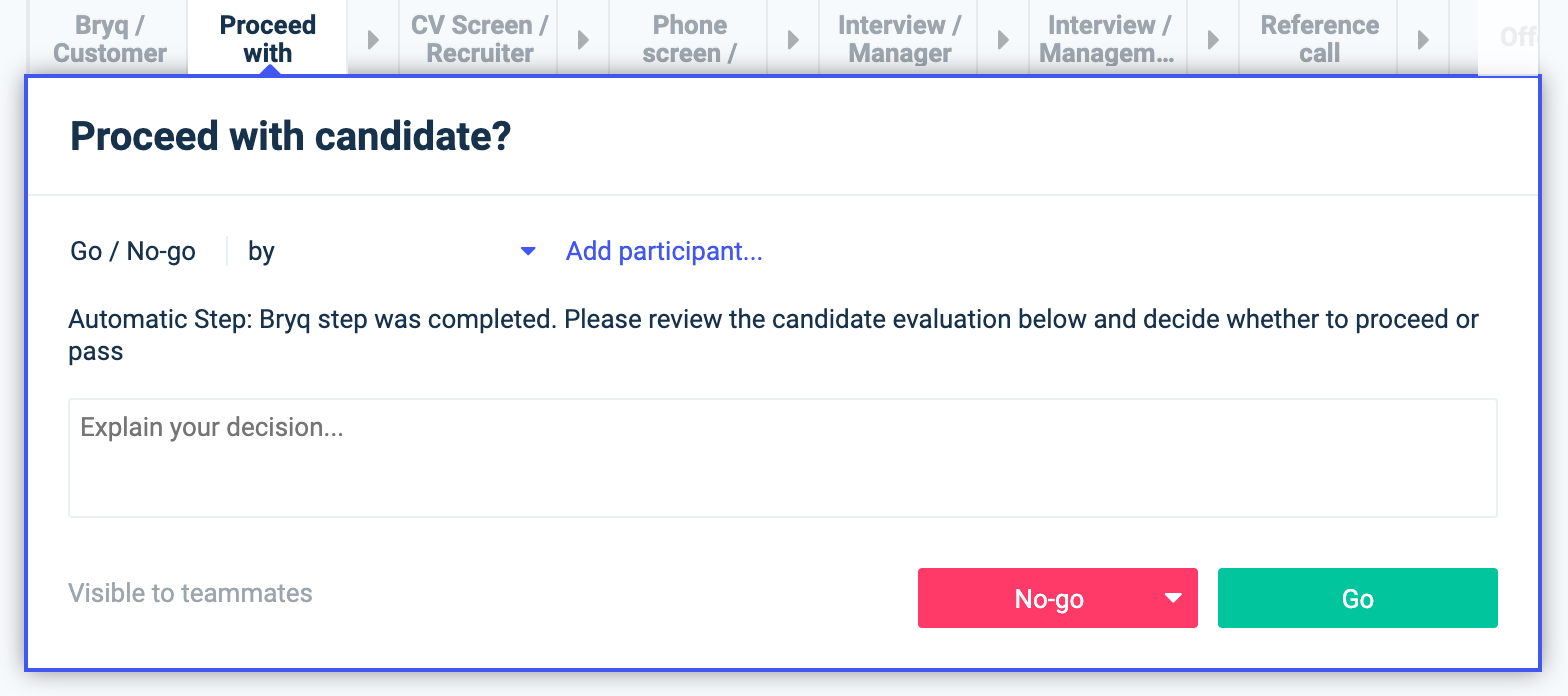
2\. Once you have assessed the candidate and if they would be a good match for your position, you can scroll back to the top of the workflow and choose whether to proceed with the candidate or end their application process.
[](https://bryq.intercom-attachments-7.com/i/o/275571910/75a670d5dd83e1b755b1485d/Pn_-Sb97zvml34d0_v0JhurFR3a96yo85hSVdX9S7pcFLhnS7FlOvpNmRK1VGS00kqifv4BJm7kOumS-ntVh0Q1v2T3YnaNx2Rx_3LMLn3wMM6ipLrUxHyQowcvvPdzB6epu0r2s?expires=1765189800&signature=cb366140f9c57a0227ebbd9023e315cc1a5d9cfc3879b8abe7c14289c2608af4&req=diciE85%2FlIBfFb4f3HP0gGKrFD6vRLi7ROOsyhoNtdHwcHrTLqaiXzgcrFTj%0AnxoWOPHHE%2B%2BMV%2F2p4Q%3D%3D%0A)
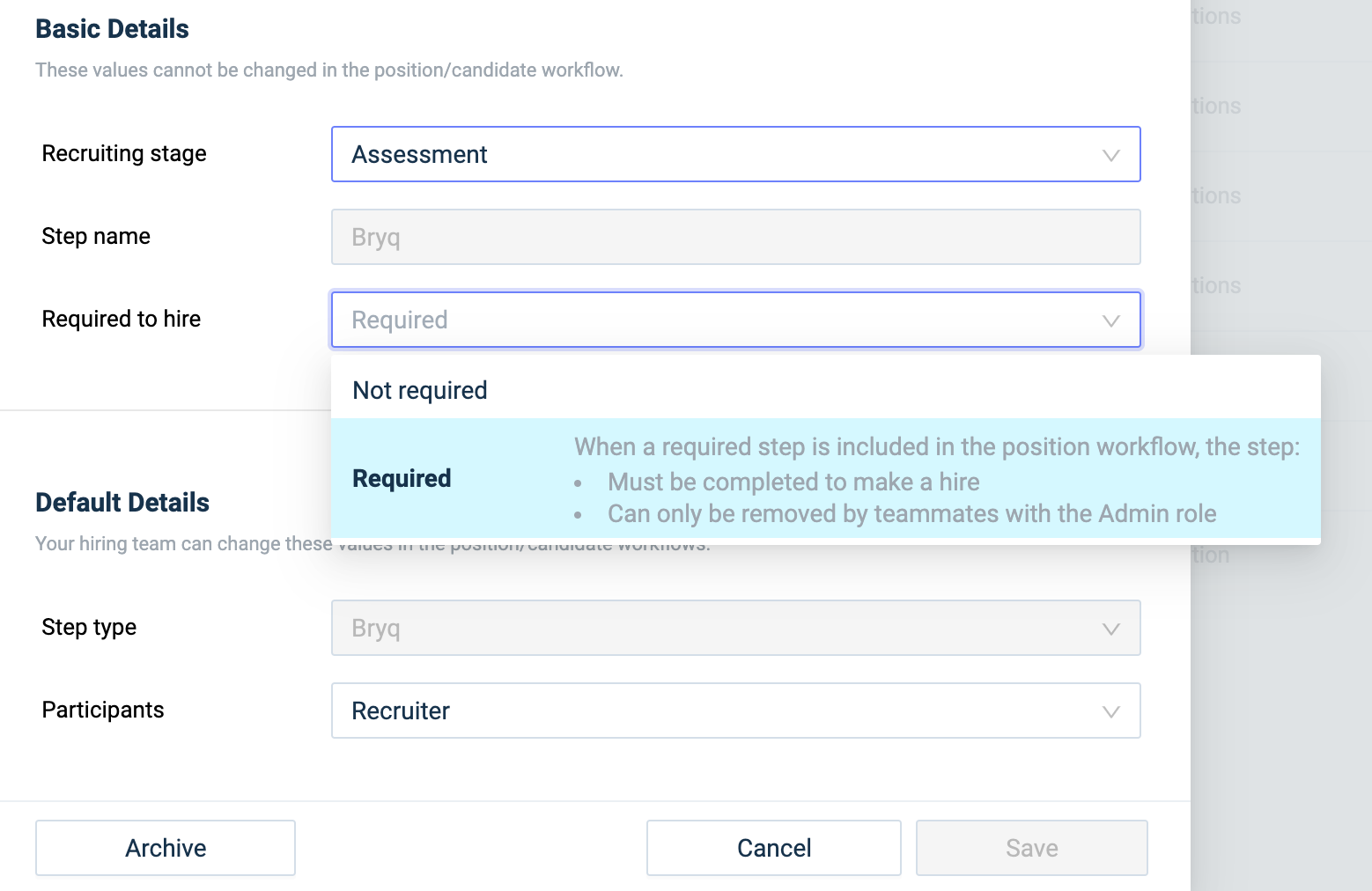
**Time saving tip:** To make taking the Bryq assessment required for hiring, click Edit and select **Required** from the dropdown menu.
[](https://bryq.intercom-attachments-7.com/i/o/275571913/cfdf21fbc906e99c63ea5ba7/PP1-MmbCT8ibrhCEvIK5VhO8PqrAcHiW-sv_HjZhzU2PaXbyEJYmHnqrVo5b1K5Qg70U7S0LRRItt4HYEHIVzhQ426g3CC1lN4b52s8zZnvSJJ0oQ_Tux12XaY7m14jYlcFXSHjI?expires=1765189800&signature=1fd451a986fe966560a70b5126c962b36a0736c8959157dd873094942e997f72&req=diciE85%2FlIBcFb4f3HP0gM5rwuOLaORQAP6%2FZiAS9%2BL4K2yqNBY5wU3rkf7z%0A5Sqt0L8GubnGw0d1Yg%3D%3D%0A)
Now, Comeet and Bryq are fully integrated and you will be able to select role specific assessments, send to candidates, review results and move candidates along in the hiring process!
If you have any further questions, feel free to contact us at [support@bryq.com](mailto:support@bryq.com).
- [Integrations](https://help.bryq.com/en/integrations?hsLang=en)
- [About Bryq](https://help.bryq.com/en/about-bryq?hsLang=en#main-content)
- [Overview](https://help.bryq.com/en/about-bryq?hsLang=en#overview)
- [Compliance](https://help.bryq.com/en/about-bryq?hsLang=en#compliance)
- [Set up and Configuration](https://help.bryq.com/en/set-up-and-configuration?hsLang=en#main-content)
- [3rd Party Integrations](https://help.bryq.com/en/set-up-and-configuration?hsLang=en#3rd-party-integrations)
- [Setting up Bryq](https://help.bryq.com/en/set-up-and-configuration?hsLang=en#setting-up-bryq)
- [Talent Acquisition](https://help.bryq.com/en/talent-acquisition?hsLang=en#main-content)
- [Understanding assessment results](https://help.bryq.com/en/talent-acquisition?hsLang=en#understanding-assessment-results)
- [Skills Assessments](https://help.bryq.com/en/talent-acquisition?hsLang=en#skills-assessments)
- [Setting up jobs](https://help.bryq.com/en/talent-acquisition?hsLang=en#setting-up-jobs)
- [Bryq Assessment (Profile Fit)](https://help.bryq.com/en/talent-acquisition?hsLang=en#bryq-assessment-profile-fit)
- [Candidate Experience](https://help.bryq.com/en/talent-acquisition?hsLang=en#candidate-experience)
- [Using Bryq - Best Practices](https://help.bryq.com/en/talent-acquisition?hsLang=en#using-bryq-best-practices)
- [Hiring Managers](https://help.bryq.com/en/talent-acquisition?hsLang=en#hiring-managers)
- [Talent Management](https://help.bryq.com/en/talent-management?hsLang=en#main-content)
- [Growing your Talent with Bryq](https://help.bryq.com/en/talent-management?hsLang=en#growing-your-talent-with-bryq)
- [Setup](https://help.bryq.com/en/talent-management?hsLang=en#setup)
- [Team Insights](https://help.bryq.com/en/talent-management?hsLang=en#team-insights)
- [Role Validation](https://help.bryq.com/en/talent-management?hsLang=en#role-validation)
- [Bryq Science](https://help.bryq.com/en/bryq-science?hsLang=en#main-content)
- [The Science behind Bryq](https://help.bryq.com/en/bryq-science?hsLang=en#the-science-behind-bryq)
- [FAQs](https://help.bryq.com/en/faqs?hsLang=en)
- [Settings](https://help.bryq.com/en/settings?hsLang=en)
- [Product Tutorials](https://help.bryq.com/en/product-tutorials?hsLang=en)
[](https://help.bryq.com/?hsLang=en)
[Bryq App](https://app.bryq.com/) • [Bryq Website •](https://www.bryq.com/) [App Updates](https://news.bryq.com/product-updates?hsLang=en)
Copyright © 2026, bryq.com